
Select a Template Set
Content is controlled and managed within the Loyalty platform by means of a Template Set. A Template Set is an HTML document that controls what layouts, styles, and content elements are available to the marketer when they are creating content for an asset.
The platform supports a default Template Set for each platform asset type, such as Offers or Rewards. However, you can optionally define additional Template Sets for a given platform asset type.
For more information on Template Sets, please see Getting Started with Template Sets.
When you navigate to the Content Editor for an asset, the platform displays the default Template Set for that asset type. If your account has multiple Template Sets for this particular asset type, you can select a different Template Set.
To select a Template Set:
-
Navigate to the Details screen for the desired asset. For example, if you need to define the content for a specific Offer, you would navigate to the Offers screen, then search for and select the desired Offer to view the Offer Details screen.
-
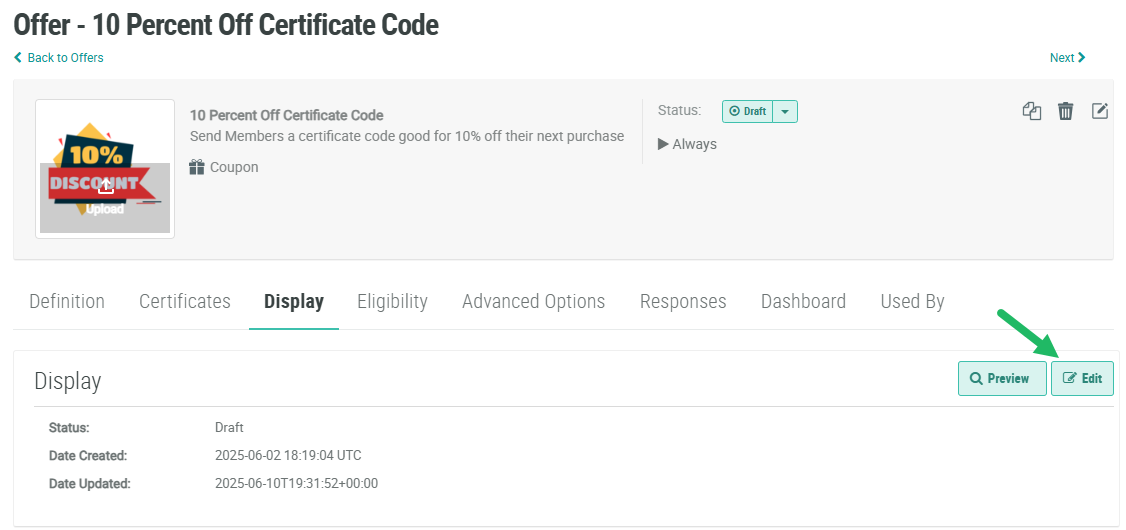
From the Details screen of the desired asset, select the Display tab.
-
Click Edit. The Content Editor is displayed in a separate browser tab or window.
-
The default Template Set for this asset type is selected by default. The selected Template Set and version number is displayed within the Menu Bar at the top of the Content Editor screen.

-
Within the Menu Bar, click the Template Set icon. The Template Set selector pop-up window is displayed. This window lists all Template Sets for the currently selected asset type. The window displays each Template Set name, version, and status.

-
Optionally, to view the HTML for a Template Set, click the View icon.
-
Click the desired Template Set. The platform refreshes the Content Editor and displays the Layouts in the selected Template Set.
